HomeDock OS 2.6: A Terminal for Every App and a Full Reskin
HomeDock OS 2.6 brings a terminal to every app, a Task Manager-grade Control Hub, live logs, Sheets and Writer, image thumbnails, Zipfile and a new App Store
 Claudio González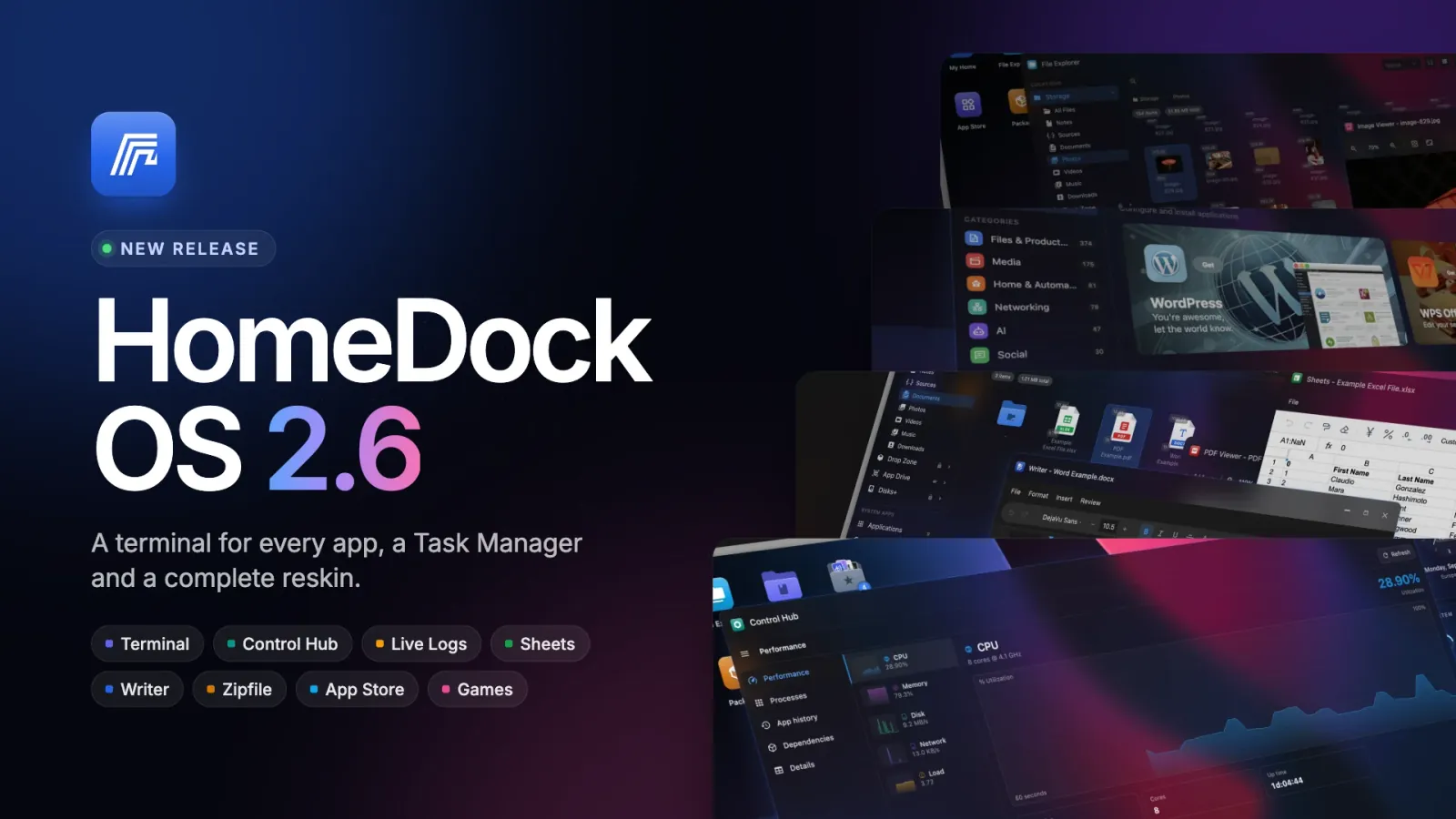
With 2.4 your applications stopped opening in another tab and started living inside HomeDock OS, in real windows. HomeDock OS 2.6 is about everything around those windows. Every app now has a terminal, the Control Hub grew up into a Task Manager, logs got rebuilt from scratch, spreadsheets and Word documents open and edit in place, your pictures finally show what is inside them, archives open with a double-click, the App Store and Packager were rebuilt, and the whole desktop got a new coat of paint, down to the last icon.
It is the biggest release we have ever shipped. So grab a coffee: this one is long.
Every App Now Has a Terminal
Right-click any application and you get a real shell inside its container, the same one docker exec -it would give you on the host, except you never had to SSH into the host to get it. vi, top, tab completion, arrow-key history, Ctrl+C, colors, full-screen programs, the lot. It is not a text box pretending to be a console: it is a console.
It opens from wherever you already are: the desktop, a folder, the Control Hub, the app’s own window status bar, or any member of a group in Application Properties. And yes, dependencies too: your Postgres finally gets a shell without you having to remember its container name.
 Nextcloud - TerminalNextcloudNextcloud — bash
It picks the right shell and tells you what it picked: bash if the image has it, ash on Alpine, plain sh everywhere else, and a menu to switch between whatever the container actually ships. You can run as the container’s own user or as root, and if the image is one of those distroless ones with no shell at all, the window says so instead of hanging there looking thoughtful.
Closing the window actually ends the session. Docker has a charming habit of leaving your shell, and everything you started from it, running forever after the connection is gone. We checked. It does. HomeDock OS now hangs up the shell the moment the window closes, the tab closes or the connection drops, so top does not keep running in a container nobody is looking at.
You also get a readable prompt, red for root and green for everyone else, plus colored ls and grep, loaded on the fly and gone when you close the window, without touching a single file in your container. On a phone, a row of extra keys (esc, tab, ctrl, alt, arrows, |, ~, /, -) sits above the keyboard, because nobody has ever managed to type Ctrl+C on a touchscreen. And yes, there is a HomeDock OS logo in the banner. We are a small team from Spain; the logo is our marketing budget.
The Control Hub Is Now a Task Manager
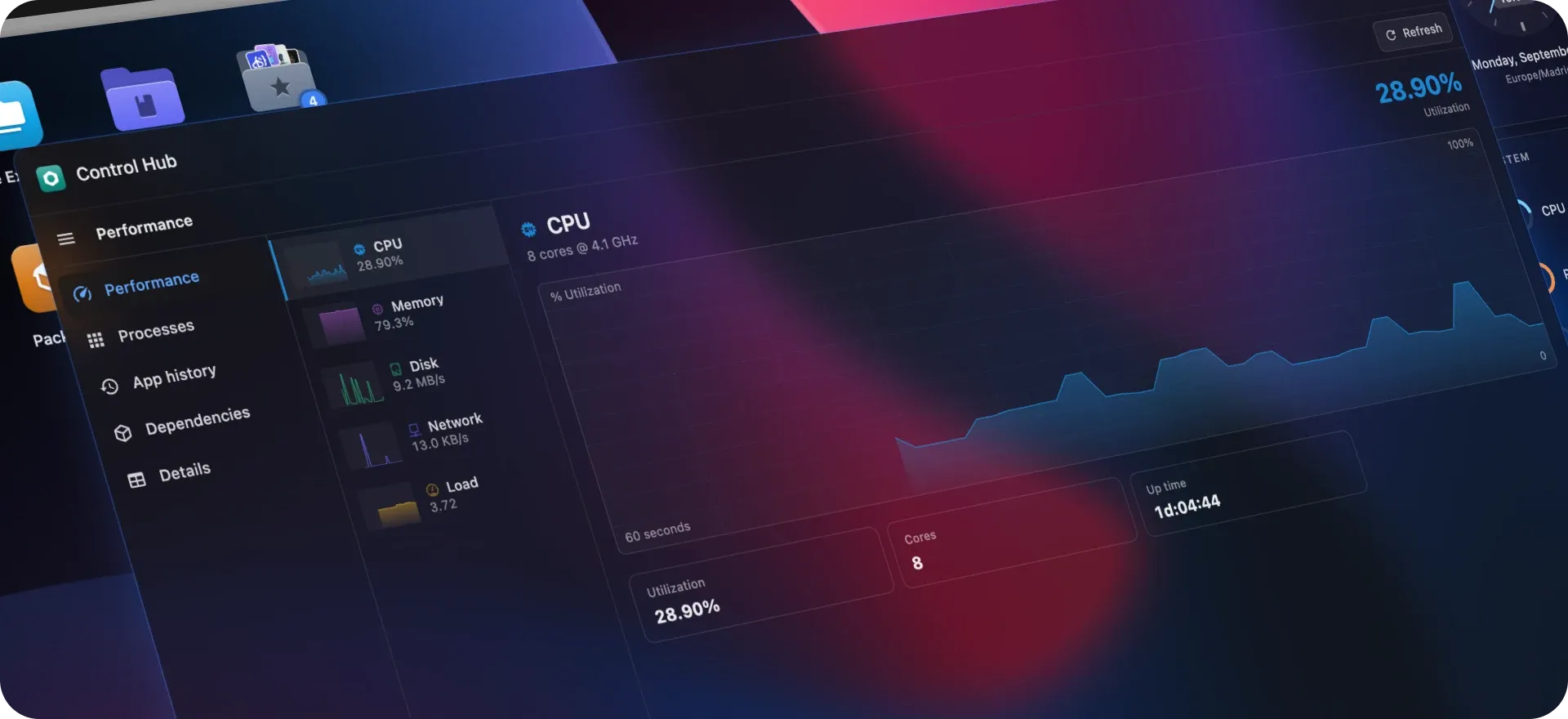
Five tabs: Performance, Processes, App history, Dependencies and Details. Sortable columns with a heat map, apps and background processes split apart, dependencies nested under the app they belong to, Del to end a task, F5 to refresh, right-click or long-press for everything else. If you have ever opened Task Manager on Windows 11, you already know how to use it. We will not tell anyone.
Performance draws live graphs of the whole machine: CPU, memory, disk, network and temperature, each with its own 60-second graph, plus disk I/O, network I/O and load average, which HomeDock OS had never measured before. You can finally tell whether it is your box that is slow or your patience.
Details gives every container its own card with live CPU and memory graphs, uptime, ports and the container ID one click from your clipboard, with each dependency listed inside the app it belongs to, so you can see which part of Immich is eating your RAM. Spoiler: it is the machine learning. Memory is now shown in megabytes, not in percentages that mean different things depending on the container’s limit, so you can compare two containers without a calculator.
Dependencies stopped being invisible, too. If your Nextcloud database is down, the Nextcloud icon on your desktop now tells you with a small badge instead of letting you find out from a blank page. And right-clicking an app now gives you Terminal, Logs, Control Hub and App Drive side by side, in a single row.
Logs You Can Actually Read
Out went the gray text box and the auto-refresh switch. Logs are now always live, keep the colors your app prints, and show the time of every line. Errors come tinted red, warnings amber, and the status bar counts the errors for you. Search highlights as you type, a filter leaves only warnings or errors, and you can pick the last 15 minutes, hour or day.
Nextcloud - LogsNextcloud logs
Real-time container logs
NextcloudScroll up to look at something and the view stays exactly where you left it, while a small ”↓ 12 new lines” button waits at the bottom to bring you back. Just like Console on a Mac, minus the 40,000 lines about Bluetooth. Downloading asks how far back you want to go, only offers the ranges that actually have something in them, and tells you how big the whole thing is before you commit to it. Immich, we are looking at you and your 25 MB.
App Drive Reaches Beyond HomeDock OS
Plex pointing at /mnt/media, Jellyfin at an external drive: those folders used to simply not exist as far as App Drive was concerned. Now they show up, locked, and ask for your HomeDock OS password before opening, with a dialog showing the app’s icon and exactly which host folder it is about to open. Protected system paths like /etc or C:\Windows ask again, and each app unlocks on its own, so opening Immich’s volumes doesn’t quietly open Jellyfin’s too.
Your database volumes now sit right under the app that owns them, and App Drive finally works on Windows, where Docker’s /mnt/c/HomeDock/... and Windows’ C:\HomeDock\... had been politely ignoring each other since day one.
Spreadsheets and Documents Open, and You Can Edit Them
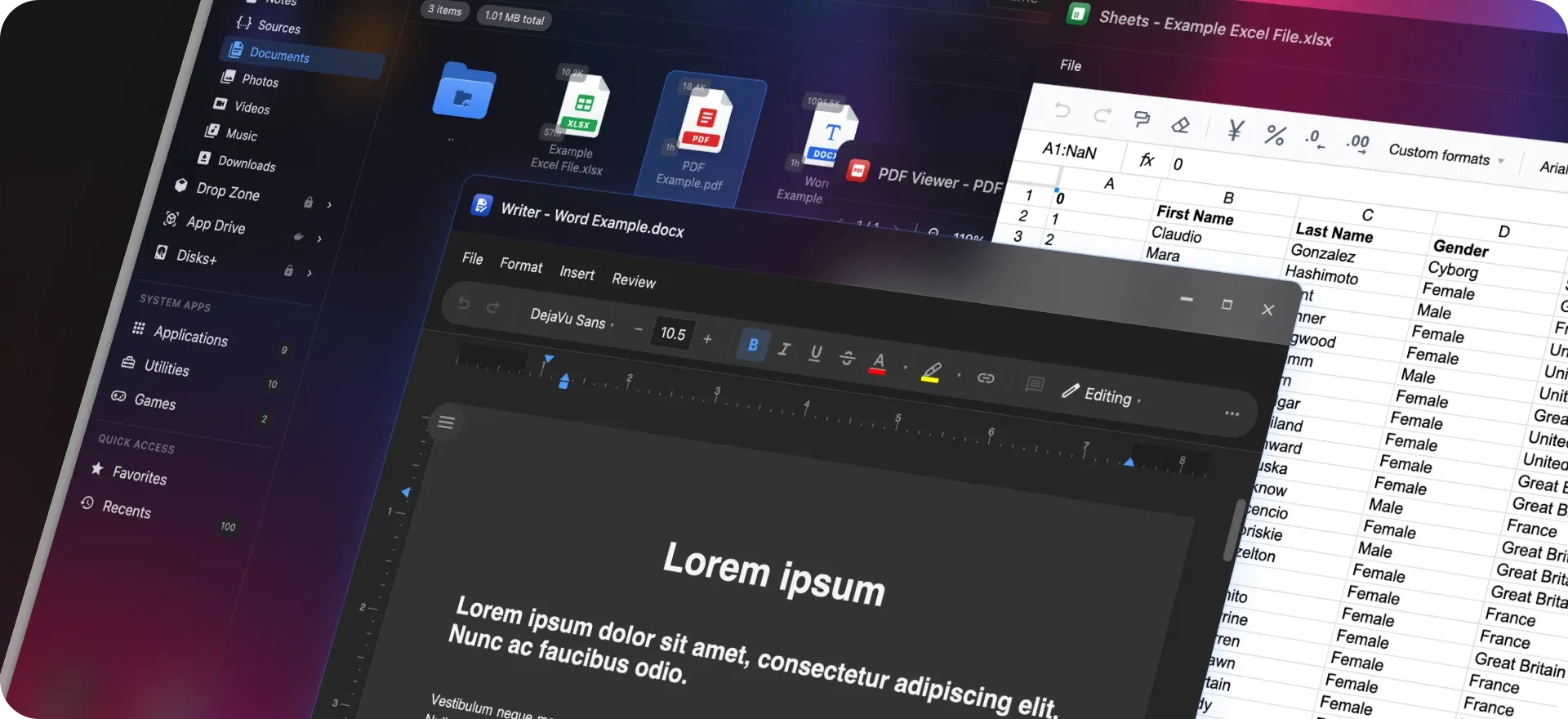
Double-click any .xlsx in the File Explorer and it opens in Sheets, a real spreadsheet editor living inside HomeDock OS: formulas, several sheets, bold, colors, borders, merged cells, frozen panes, column widths. Double-click any .docx and it opens in Writer, a proper page editor with headings, lists, tables, images, headers and footers and right-to-left text.
Press Ctrl+S and it goes back to the same file, whether it lives in Storage, the Drop Zone, an App Drive volume or a Disks+ drive, and what you did not touch comes back exactly as it was: formulas keep their results, numbers stay numbers, text that only looks like a number (hello, 00123) stays text, and dates stay dates. New documents are saved in Storage/Documents, not in your browser’s Downloads folder. No office suite container to install, no uploading your budget to someone else’s cloud, and both editors weigh nothing until the first time you open a file.
The File Explorer Finally Shows You Your Pictures
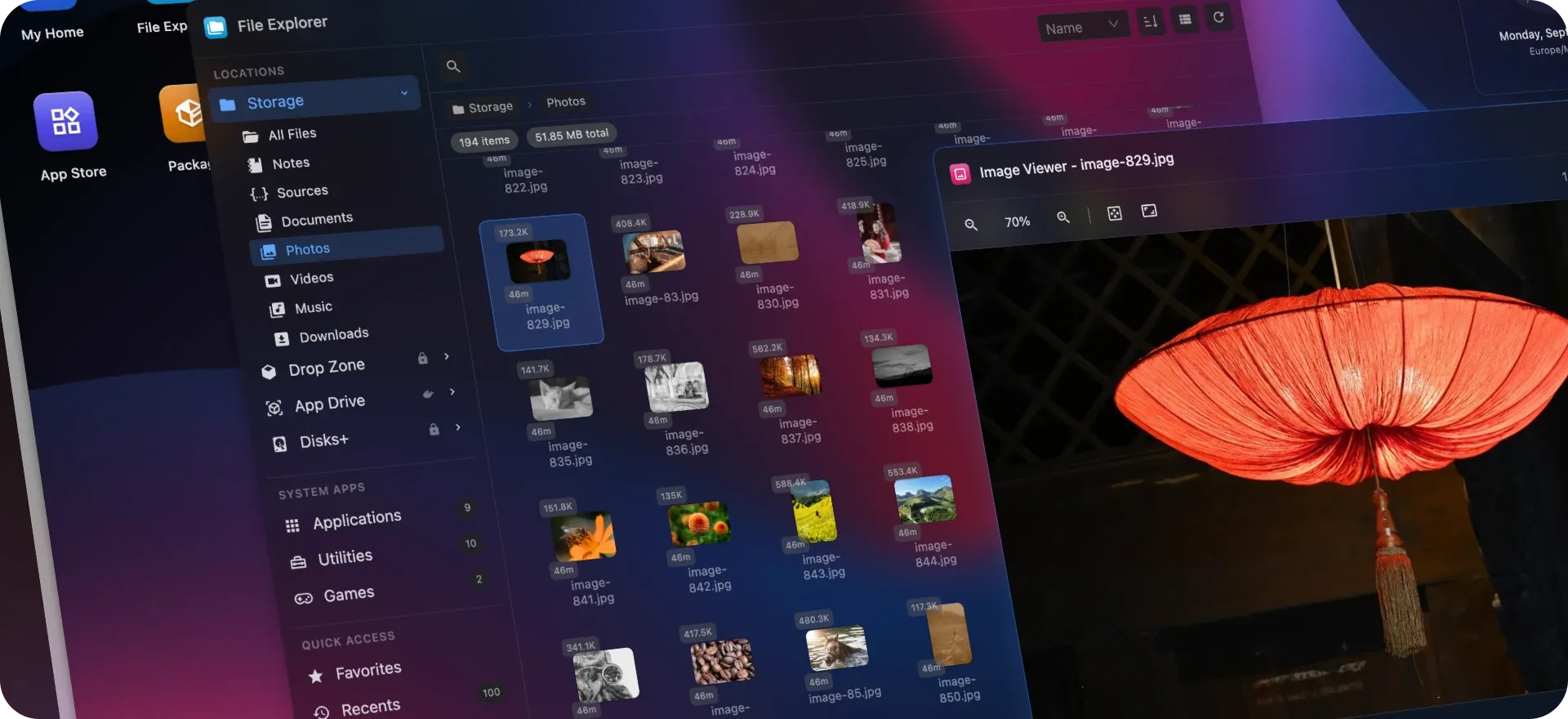
Images in Storage, the Drop Zone, App Drive and Disks+ now show a thumbnail of what is inside instead of the same generic icon repeated forty times: JPEG, PNG, GIF, WebP, AVIF, TIFF, BMP, icons, Photoshop files and the RAW files from most cameras (Canon, Nikon, Sony, Fujifilm, Panasonic, Pentax, Samsung and DNG), rotated the right way up. Only the ones on screen are made, a few KB each, and they are remembered. In the Drop Zone they are made on the fly and never written to disk, because an unencrypted copy of each picture sitting next to your encrypted files would rather defeat the point.
The Image Viewer opens what your browser can’t: Photoshop files, camera RAW, TIFF, AVIF, TGA, JPEG 2000 and friends. And you can now drag a picture, a PDF, a video or a song from your computer straight onto the Image Viewer, the PDF Viewer or the Media Player, whose spectrum analyzer went 3D while we were at it.
Zipfile: Your Archives, Opened
Double-click any .zip, .tar, .tar.gz or .tgz and it opens in Zipfile, a new utility that shows what is inside as a Finder-style list. Double-click a file in there and it opens in the right app without extracting anything first. A ZIP inside a ZIP opens in its own Zipfile window, because of course someone zipped a zip.
Extracting works the way a Mac does it, and nothing is ever overwritten: you get Photos 2 instead of losing Photos. Right-click anything and Compress creates a ZIP right there, optionally with a password, and password-protected archives open too, AES and the older ZipCrypto your uncle still sends. And an archive can’t hurt your server: that 52 KB ZIP that expands to 2,000 TB gets stopped before it fills a single disk, items trying to escape with ../, links or device files are skipped, and nothing that comes out of an archive is ever executable.
Notepad and Code Stopped Being Afraid of Big Files
Opening a 140 MB rockyou.txt (don’t be evil) used to freeze the page, the browser and HomeDock OS along with them. Now it opens in under a second, and typing, searching, replacing and saving stay instant from the first line to the ten millionth. No size limits, no read-only fallback: it is still a text editor, it just stopped being afraid of big text. Code also highlights better, following the structure of the file instead of matching words, and File > Open… finally lists everything in Storage/Sources.
A New App Store, and a Packager to Match
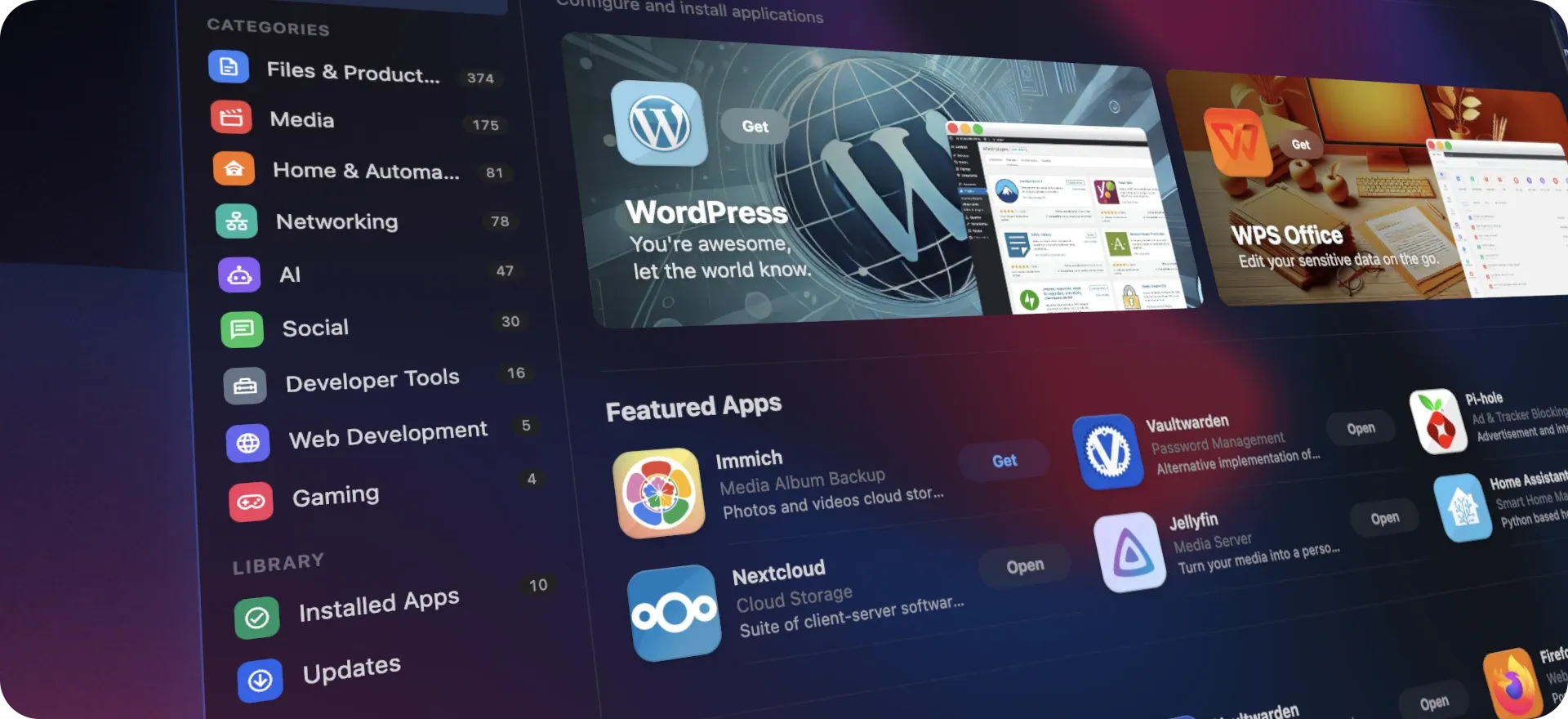
The App Store got rebuilt around a sidebar: Discover, every category with how many apps it holds, and a Library with your Installed Apps and Updates, each with its own colored icon. Search just searches, Discover shows you around with shelves and a See All for every big category, and rows look like an App Store should, with a Get pill that turns into Open once the app is installed. On a phone, it becomes a tab bar with large titles, the way iOS lays it out.
Every app page now tells you how big the download is before you press Get, and warns you when an app wasn’t made for your server’s processor, which is bad news for a Raspberry Pi or an Apple Silicon Mac, while still leaving the decision to you. Screenshots open like a Mac would open them, as a real window of that app.
Packager got the same treatment, and six community stores are one click away: Casa App Store, BigBearTechWorld, TMC Store, Zima App Store, Coolstore and Casa LinuxServer, taking the App Store to over 800 apps, with a real progress bar while they download.
A Start Menu That Searches, and a Finder That Finds
Open the Start menu and start typing: apps and files show up as you type, the arrow keys move through them and Enter opens the one you want. Pinned actually pins now, Recommended remembers what you opened last, and every app, Enterprise modules, system apps, utilities and games included, sits in a single list.
Finder got rebuilt, Spotlight style: results on the left under a Top Hit, Apps, Files and App Store, and a preview of whatever is selected on the right, with the button you actually wanted. Stopped apps are no longer invisible to it, files in Storage are searched all the way down, and nothing is downloaded until you type.
A Complete Reskin, Down to the Last Icon
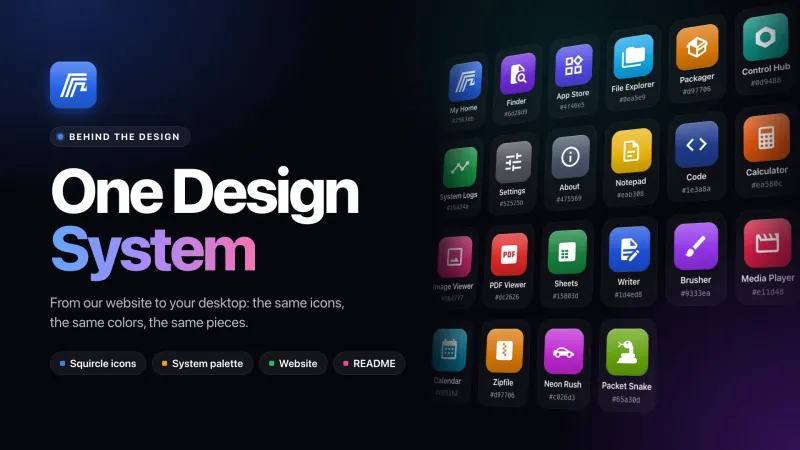
This is the part you notice before reading a single line of release notes. Every app got a proper icon: a rounded square in its own color with a white symbol, the same one on the desktop, the Start menu, the taskbar, the title bar, My Home, Finder and the File Explorer, so you recognise an app by its color before you read its name. Icons that are just a transparent logo stop floating on nothing.
Folders finally look like folders, with a back, a tab, a front cover and the icons of the apps inside peeking out over the edge. Files stopped being flat grey glyphs: each one is a sheet of paper with a folded corner, colored by what it is, with its extension printed at the bottom. Running apps no longer blink a green dot at you all day, and when an app starts, stops or updates, a small comet of light runs around the edge of its icon.
The sign-in screen got some depth: the card leans towards your mouse with a soft reflection, the fields glow when you type, and the HomeDock OS logo is now a real object that floats in 3D, spins while your password is checked, shakes its head when it is wrong and turns green when you are in. Setting up HomeDock OS starts with a small show, too.
Your Desktop Follows You
Folders, what is inside them, your widgets and your pinned apps are now saved to your account instead of your browser, so the folder you made on your home PC is waiting for you on the office one, contents included. Each device keeps its own layout: tidying up your laptop never scrambles your 27-inch monitor. And your apps stop forgetting where they live after an update, because the desktop now remembers them by name instead of an ID that changed every time.
Our First Games: Neon Rush and Packet Snake
Every self-respecting operating system ships a game, so we shipped two. Neon Rush is an endless arcade racer down a synthwave highway, driven in a black and white hatchback with its pop-up headlights up, to a soundtrack of our own. You earn your boost back by grabbing spinning cubes that wear the icons of your own installed apps, so yes, you can literally run over your Jellyfin for speed.
Packet Snake is the classic snake on a neon grid, eating packets that wear your apps’ icons while its chiptune speeds up with it. Now and then a small terminal shows up typing sudo -s: grab it and for eight seconds you are root, which here means going through walls. Both play on a keyboard, a gamepad or a phone, pause when you switch windows, and save your best score to your account.
Under the Hood: Meet the Monster
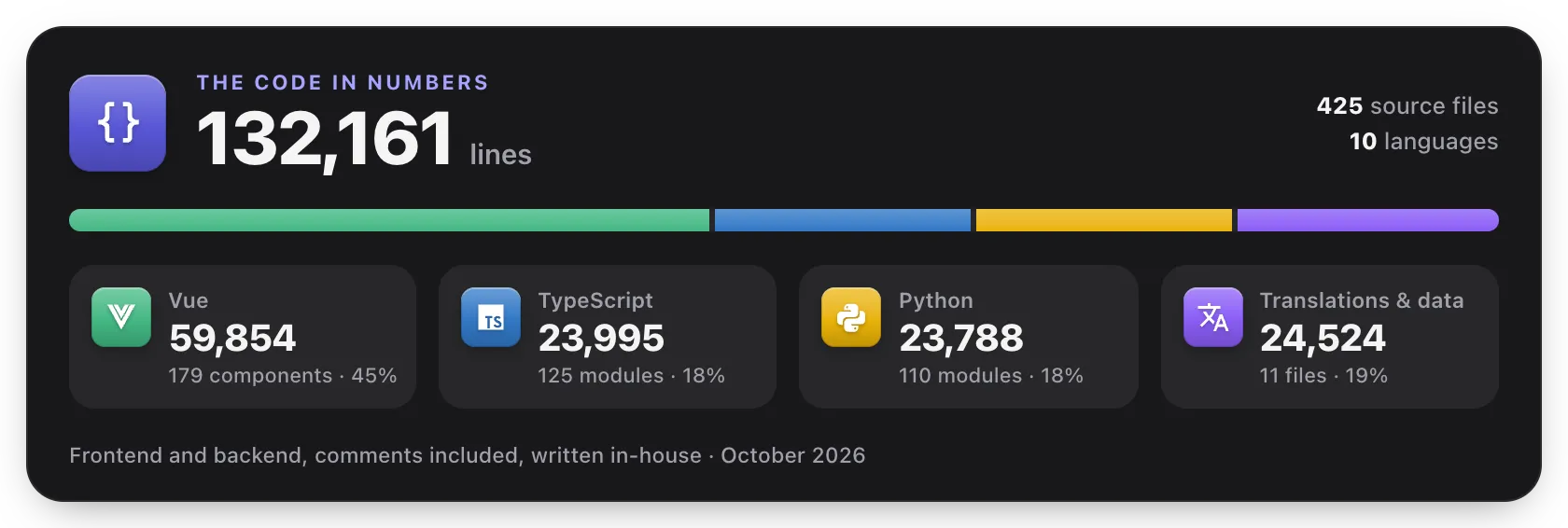
Every now and then we look at what HomeDock OS has become and call it what it is: the Monster. 132,161 lines, frontend and backend, comments included, all of it written in-house: 59,854 lines of Vue across 179 components, 23,995 of TypeScript, 23,788 of Python and 24,524 of translations and data.
2.6 fed it well. The terminal runs over a WebSocket route mounted in the ASGI stack ahead of Flask, with single-use session tickets valid for 30 seconds, backpressure so cat on a huge file never piles up in memory, and a hang-up that captures the shell’s PID inside the container, because Docker keeps exec processes alive after their connection is gone. The terminal itself is xterm.js 6, logs are virtualized and parse ANSI colors as text, never as HTML, Notepad and Code moved to CodeMirror 6, Zipfile does WinZip AES on cryptography with decompression bomb protection, and Sheets and Writer are React islands living inside the Vue desktop. A monster, yes, but a well-fed one.
Patched Since Launch
Two maintenance releases followed 2.6.2.88. 2.6.2.102 closed 16 CVEs and 1 advisory across urllib3, axios, DOMPurify and uuid, and made Enterprise modules with a status bar compile again. As we wrote in the changelog, the honest count of the ones that could actually touch HomeDock OS is close to zero, but “not reachable today” has a way of aging badly. 2.6.2.104 stopped apps like Sonarr and Radarr from going blank over HTTPS when they redirect to their own login page.
Available Now
HomeDock OS 2.6.2.104 is available today for everyone. If you are already running HomeDock OS, you will receive the update notification, and the first time you sign in afterwards the release notes will open automatically. Everything here is also covered in the
2.4 put your applications in windows. 2.6 gives each of them a terminal, a Task Manager, live logs and a home that finally looks the part, on a VPS, a Raspberry Pi beneath the TV, or HomeDock OS Desktop on your Windows or macOS machine.
Thanks for being part of this journey ❤️
Related Links