One Docker Container to Rule Them All: HomeDock OS
Deploy your entire home cloud in 60 seconds with a single Docker container. Discover how HomeDock OS brings Portainer-level power to everyone

Remember when setting up your own cloud meant spending entire weekends fighting with installation scripts, dependency conflicts, and cryptic error messages? Those days are over. With containerized HomeDock OS, you can deploy your entire home cloud infrastructure in the time it takes to make coffee. Seriously, 60 seconds.
This exact same month, we made a decision that changed everything, we containerized HomeDock OS making it as portable as possible. Not just wrapping it in Docker as an afterthought, but completely redesigning it to live and breathe as a container. The result? One Docker container that manages all your other Docker containers. Think Portainer, but built from the ground up to be your complete home cloud operating system instead of a sysadmin application.
From Platform-Specific to Truly Universal… Twice
We’ve always believed in meeting users where they are. That’s why we built HomeDock OS Desktop for Windows and macOS, and HomeDock OS (the core itself) with a streamlined bash script for Linux servers. Each version optimized for its platform, each designed to make installation as smooth as possible.
But here’s the thing: even with native installers, you’re still locked to specific platforms. HomeDock OS Desktop works on Windows and Mac. The Linux version works properly on most Linux distributions. Want to test on your Mac laptop before deploying to your Linux server? You’re dealing with two different installation paths. Want to move from your Windows machine to a Raspberry Pi? That’s a platform migration.
Containerization changes the game entirely. It’s not about making installation easier, it’s about making installation identical everywhere. The same container image runs on your Windows laptop, your Linux server, your Raspberry Pi, your Mac, and your cloud VPS. No platform-specific versions. No different installation procedures. No compatibility questions.
This is what we mean by truly cross-platform. Not “we have a version for your platform,” but “your platform doesn’t matter anymore.” Write down the same command on Windows, Mac, Linux, or a Raspberry Pi, you get the exact same result. It’s the Portainer promise of unified container management, but without the steep learning curve or the sysadmin-first interface. Docker runs? HomeDock OS runs. Anywhere. Always.

The Portainer Comparison: Why This Changes Everything
If you’ve used Portainer, you know the magic feeling of managing dozens of Docker containers through a web interface. Click a button, deploy an app. No terminal commands, no configuration files, no headaches. Felt like magic at first sight, right? You could finally focus on building things instead of fighting with infrastructure, dependencies, commands and compatibility issues.
HomeDock OS inside a container itself takes that concept and expands it into a complete cloud operating system. While Portainer excels at container management with its technical interface (uncluding Kubernetes, Podman and Docker), HomeDock OS adds encrypted storage with Drop Zone, encrypted login system even when HTTPS is not available, more than 200 apps ready, native SSL support (and apps which inherit the certificate when installed), centralized authentication, and dozens of pre-configured environments that just work together.
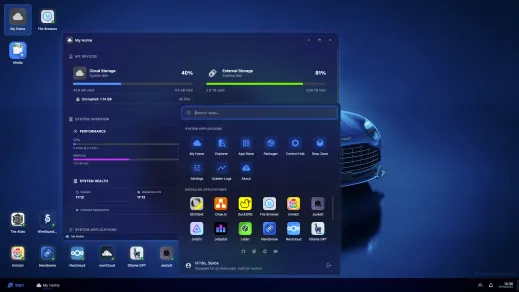
But here’s where it gets wild, HomeDock OS 2.0 includes Prism Window Manager, a full-fledged window manager running entirely in your browser. This means true multitasking with multiple applications open simultaneously, draggable windows, a taskbar, desktop icons, and a Start menu. It’s not a web app pretending to be an OS, it’s an actual desktop environment that happens to run in a browser. Compare that to Portainer’s single-page interface, and you’ll understand why we say HomeDock OS is an operating system, not just a container manager.

And now that HomeDock OS itself is a container too, it makes it truly a container to rule them all. This means you can:
- • Deploy it anywhere Docker runs - Your laptop, a Raspberry Pi, a cloud VPS, or even on Proxmox. Same container, zero modification.
- • Test it risk-free - Spin up an instance, play around, delete it. No traces left on your system other than the binding volume with your data.
- • Update with confidence - New version? Pull the latest container. If something breaks, roll back in 10 seconds, MAGIC.
Some people may say now that we’re a Portainer alternative too, because it’s the Portainer workflow, but for your entire home cloud instead, it’s kind of a different approach. Install once, manage everything. Want to add your own custom applications? You can do that too using the HomeDock OS Packager, an in-app application which gives you the power of containerization without the complexity so you can share and move these apps to any other environments with just a few clicks.
What Docker-in-Docker Really Means for You

Here’s where it gets interesting. HomeDock OS isn’t just running inside Docker, it’s also managing Docker from inside Docker. This pattern, called Docker-in-Docker, sounds complicated but the implications are beautiful, specially for non-technical users and the self-hosting community at large.
Imagine you’re using HomeDock OS and decide you want to install Nextcloud. You click “Install Nextcloud” in the interface. Behind the scenes, HomeDock OS talks to your host’s Docker engine and creates the Nextcloud container for you, with all the right configuration, networking, and storage automatically set up. It even inherits the SSL certificate if you have one configured.
You never see Docker commands. You never edit configuration files if you don’t want to. You just click, and it works. As Steve Jobs would say, “It just works”. This is the same technology that powers enterprise container orchestration platforms, now available to anyone with a spare computer and an internet connection. The technical complexity is hidden. The power remains accessible to everyone, and you.
Real-World Magic: What You Can Actually Do

Let’s move beyond theory. Here’s what containerized HomeDock OS unlocks for real people.
For the Experimenter
You’re curious about self-hosting but nervous about breaking things (and trust me, we’re all used to it). With a containerized HomeDock OS instance, your anxiety disappears. Want to test whether self-hosting is for you? Pull the HomeDock OS container, try it for a week, it’s not for you? Delete it. Your system remains pristine. No residual files. No broken dependencies. No regrets.
Changed your mind? Reinstall later, and all your data returns exactly as you left it because persistent storage is separate from the application. No risk, no commitment, just pure exploration.
For the Home Lab Enthusiast
You run a home server with Jellyfin, Nextcloud, Home Assistant, and a dozen other services. Managing them individually is tedious. Ports conflict. Updates break things. You’re constantly SSHing into your server to fix something.
With HomeDock OS, everything becomes visual. Thanks to Prism, you can have the App Store open in one window, System Logs in another, and Control Hub in a third, all visible simultaneously. See all your services at a glance. Check their health. Update them with a click. Monitor resource usage. Configure backups. It’s like having Windows or macOS, but for your server infrastructure. All from one interface, all managed by one container to rule any other containers.
For the Privacy-Conscious Professional
You’re a freelancer handling client data. GDPR compliance requires encrypted storage. You need professional tools but don’t have an IT department.
HomeDock OS gives you Drop Zone for military-grade encryption, with HomeDock OS Desktop you get automatic backups when HomeDock OS updates, and a suite of business applications all running locally under your control. Because it’s containerized, you can deploy identical setups for different projects, each completely isolated.
For the Small Business Owner
You run a small company and paying enterprise prices for cloud services is killing your budget. You need file storage, document collaboration, project management, and customer databases, but Salesforce and Microsoft 365 subscriptions add up fast.
Deploy HomeDock OS on a small server in your office. Install open-source alternatives to everything. Nextcloud instead of Google Drive. OnlyOffice instead of Microsoft Office. GitLab instead of GitHub. All managed through one interface, all running on hardware you own.
For the Remote Team
Your team is distributed globally. Everyone needs access to shared resources, but you don’t trust cloud providers with your intellectual property.
Set up HomeDock OS on a VPS or your office server. Add VPN support through WireGuard Easy. Now your team has secure access to everything: file storage, chat, video conferencing, project management. All self-hosted. All encrypted in transit. All under your control.
For the Developer
You’re building a web application and need a realistic testing environment. Spinning up production-like infrastructure locally is usually painful.
With containerized HomeDock OS, you deploy an identical copy of your production environment on your laptop in minutes. Test changes. Break things, hot-recreate of your environment. Learn. When you’re done, delete it. Tomorrow, do it again with the latest version.
Beyond Installation: The Flexibility Advantage
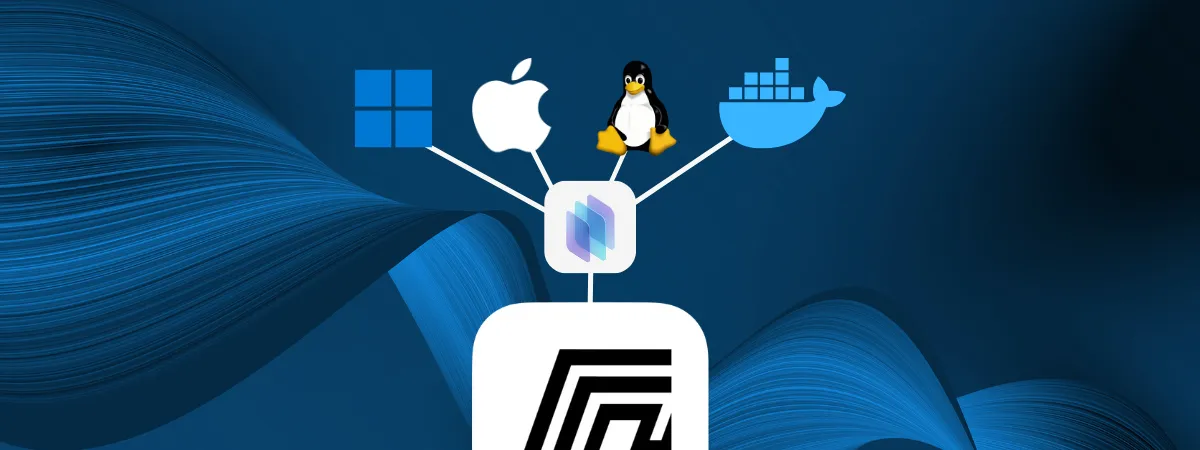
Containerization doesn’t just make installation easier, it fundamentally changes what’s possible. Test HomeDock OS on your laptop, like it, and deploy the exact same container to your production server. The transition is seamless because what works on your system works on everyone’s system. Updates happen with zero downtime, Docker handles the transition automatically. If something breaks, rolling back takes seconds with no data loss, just revert and you’re back online.
But there’s more: HomeDock OS uses about 150MB of RAM at idle compared to 400-600MB for traditional installations. On a Raspberry Pi, this difference matters. And because it’s containerized, you can run multiple isolated instances for different purposes, one for your family’s media center, another for your personal data, and one for testing. Same container image, completely separate environments. That’s the real power of containerization.
The Bigger Picture: Democratizing Infrastructure

For decades, running your own infrastructure required specialized knowledge. System administration was a career. The average person had no choice but to trust cloud providers with their data, their privacy, and often their security.
Docker changed the landscape. Containers made deployment reproducible. But containers still required terminal commands, configuration files, and technical understanding.
HomeDock OS bridges the final gap. You’re on Windows or macOS? We’ve got HomeDock OS Desktop ready for you, you’re a power user? We’ve got the Linux core version, a container enthusiast? We’ve got it on a Docker Compose too. Don’t want to keep a spare machine 24/7 running? We’ve got the cloud, too. It’s containers for people who don’t want to think about containers. It’s self-hosting for people who just want things to work. It’s enterprise-grade infrastructure management made accessible to anyone.
This matters because data ownership matters. Every file you store in Google Drive is analyzed by their algorithms. Every photo in iCloud is scanned. Every document in OneDrive is subject to Microsoft’s terms of service. You’re not the customer, you’re the product, that means that you’re paying them twice.
Self-hosting returns ownership to you. But self-hosting was hard. Too hard for most people. Our ecosystem exists just for you, for make hard things easy, and our containerized HomeDock OS makes it easier to the limit. Easy enough that anyone with basic computer skills can take back control of their digital life.
The Technical Elegance You Don’t Need to Understand
The beautiful thing is that you don’t need to understand how any of this works. Docker-in-Docker patterns, volume mounting strategies, network isolation, API version detection, none of that matters to you as a user.
You just install Docker, run one command, and HomeDock OS handles everything else. It detects your system configuration automatically. It sets up networking correctly. It ensures your data persists across updates. It manages security properly.
All the technical complexity that took us months to solve? Invisible to you. That’s the point. For the curious: yes, we mount the Docker socket into the container to give HomeDock OS access to your host’s Docker engine. Yes, we implement three fallback methods for container self-discovery to ensure it works across different Docker configurations. Yes, we automatically detect and adapt to different Docker API versions.
But you’ll never need to know any of that. You just see a desktop-like interface with our Prism’s window manager where you click “Install” and applications appear, fully configured and ready to use, even with port scanning built in so you don’t need to deal with multiport issues. Drag windows around. Organize your desktop. Work with multiple apps at once. It feels like using Windows or macOS, not like configuring a server… Anymore.
Getting Started Is Ridiculously Simple

Ready to try it? Here’s everything you need:
Step 1: Install Docker on your system. If you’re on Windows or Mac, get Docker Desktop. On Linux, install Docker Engine.
Step 2: Download our docker-compose.yml.
Step 3: Run one command: docker-compose up -d
Step 4: Open your browser to localhost:13370
That’s it. You now have a complete home cloud operating system running on your machine. Add applications through the interface. Configure settings visually. Everything just works.
Want to move it to different hardware? Copy your data folder, run the same command on the new machine. Done. In less than five minutes, your entire home cloud is up and running on new hardware. Just like that.
Want to test an update before deploying to production? Run a second instance on a different port. Test thoroughly. When satisfied, update the production instance.
Want to share your own apps with a friend? Create .hds packages straight from the built-in Packager and add them privately to any other App Store on any other instance.
The Bottom Line
Containerizing HomeDock OS transformed it from “interesting project for tech enthusiasts” into “practical solution for anyone.” The technical sophistication increased dramatically. The user-facing complexity decreased to nearly zero.
You get almost Portainer-level container management with a different purpose plus a complete ecosystem of integrated services, all wrapped in one container that deploys in what… 60 seconds? But instead of an utilitarian interface like in other solutions, you get Prism Window Manager, our state-of-the-art desktop environment with true multitasking, window management, and a familiar UI that anyone can navigate. Your laptop, your Raspberry Pi, your cloud server, they all run the same image with the same reliability and the same desktop experience.
One container to rule them all and manage all your other containers. One interface to control your entire home cloud. One solution that works identically everywhere Docker runs.
The future of self-hosting isn’t more complexity. It’s less. It’s infrastructure that disappears, leaving only the services you actually want to use. That’s what our containerized HomeDock OS delivers.
Your data. Your infrastructure. Your control. Finally, true multiplatform twice, and twice easier too.
HomeDock OS
HomeDock OSEnterprise
Image Gallery
Related Links